
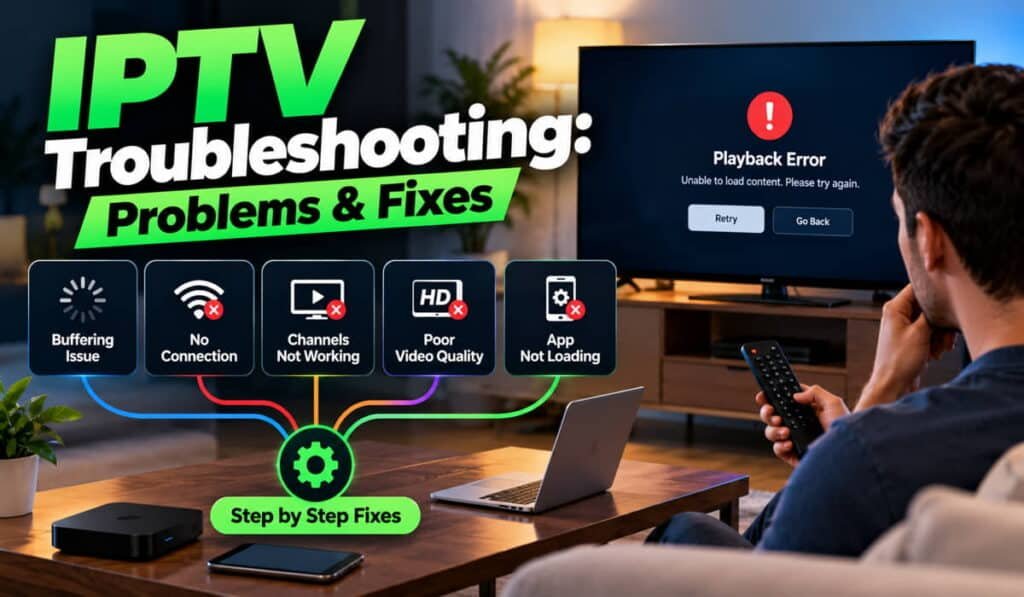
When IPTV is not working, the cause may be your internet connection, Wi-Fi network, playback device, application, playlist, account, or the IPTV provider’s delivery system. The right fix depends on which part is failing. For example, buffering may indicate unstable data delivery, while channels that refuse to load may point to an account, configuration, or service issue.
Before changing settings, check whether the problem affects one channel, every channel, one device, or other internet applications. This simple check helps narrow down the cause without wasting time on unnecessary changes.
This IPTV troubleshooting guide explains how to fix common problems, including buffering, freezing, black screens, connection errors, channels not loading, app crashes, missing EPG information, audio issues, and subscription errors. It starts with safe, basic checks before moving to more specific solutions.
For background, see what IPTV is and how it works.
Quick IPTV Troubleshooting Checklist
Before trying a specific fix, run through these basic checks. They can help you identify whether the problem is related to your internet connection, device, application, account, or service provider.
- Check your internet connection. Open another website or streaming application on the same device. If other services also fail, investigate the general network connection first.
- Test more than one channel. If only one channel fails, the issue may be specific to that stream. If every channel fails, check the app, account, connection, and provider status.
- Close and reopen the IPTV app. A temporary application error may prevent playback from starting correctly.
- Check the device’s network connection. Confirm that your TV, streaming box, phone, or computer is connected to the intended network.
- Restart the playback device. Use its normal restart option if practical, then test playback again.
- Check your account status. If the app reports an authentication or subscription error, verify your access through the provider’s official account or support channel.
- Look for service announcements. The provider may have reported maintenance or a temporary outage.
- Test before making more changes. After each action, check whether the original problem has disappeared.
These checks are a starting point, not a universal fix. If the problem continues, use the symptom-specific sections below.
Avoid factory-resetting your router or television as an initial step. Clearing application data, deleting a playlist, or reinstalling an app can also remove saved settings or account configuration. Try simpler, reversible checks first.
To understand what happens between a content source and your screen, read how IPTV works.
IPTV Is Buffering: How to Fix It
IPTV buffering happens when the player cannot obtain incoming media data quickly or consistently enough to maintain playback. The video may pause, display a loading indicator, or repeatedly stop and resume.
A slow internet connection can cause buffering, but it is not the only possibility. Network congestion, weak Wi-Fi, packet loss, device performance, application problems, and the provider’s delivery infrastructure may also be responsible.
Check Your Internet Connection
Start by checking whether other applications and websites work normally on the same device.
You can also use a reputable internet speed-test service to check your connection’s current performance. Compare the result with your usual connection and consider whether other household members are downloading large files, playing online games, or streaming video at the same time.
Remember that a speed test is only a snapshot of your connection. It does not necessarily reveal intermittent packet loss, congestion along the route to a particular streaming server, or problems affecting the provider’s service.
If you suspect that available bandwidth is insufficient, temporarily pause other high-bandwidth activities and test IPTV again.
For detailed guidance on bandwidth, stream quality, and data consumption, see IPTV internet speed requirements.
Improve Wi-Fi or Try Ethernet
A device may have a fast internet package but still receive an inconsistent wireless signal.
Try these steps:
- Move the playback device closer to the router.
- Reduce physical obstacles between the device and router where possible.
- Avoid placing the router in an enclosed cabinet or behind large objects.
- If your router supports multiple Wi-Fi bands, test the available band that provides a suitable balance of signal strength and performance.
- Try a wired Ethernet connection if the device supports it.
Ethernet can help you determine whether Wi-Fi interference or signal quality contributes to the problem. However, a wired connection will not fix an unavailable stream or a problem with the provider’s infrastructure.
Reduce Competing Network Traffic
Other devices may consume a large portion of the available connection capacity. Cloud backups, game downloads, software updates, and large file transfers can compete with IPTV playback.
Temporarily pause these activities and watch the same channel again. If playback improves, congestion may be contributing to the issue.
If there is no noticeable improvement, restore normal network use and investigate the other possible causes rather than assuming that bandwidth is the problem.
Check Whether the Problem Is Channel-Specific
Test several channels, including ones that normally play without issues.
If one channel buffers while others play smoothly, the problem may involve that channel’s source, stream, or delivery path. If all channels buffer, investigate the network, device, app, and overall service availability.
A channel-specific problem does not prove that the provider is at fault, but it gives you useful information when reporting the issue.
Check the Device and Application
Close unnecessary applications and restart the IPTV player. Check for relevant app or device software updates if the problem continues.
Before clearing app data or reinstalling the player, make sure you have the information required to restore its configuration.
If buffering persists across multiple channels and devices, and other possible causes have been ruled out, contact the provider to ask whether the service is experiencing a delivery issue.
IPTV Keeps Freezing or Stopping During Playback
Freezing and buffering can look similar, but they do not always have the same cause.
Buffering generally means the player is waiting for enough incoming data to continue playback. Freezing may mean the video image stops moving, the app becomes unresponsive, or the entire device stops responding. Because users sometimes use these terms interchangeably, observe exactly what happens before choosing a solution.
Determine Whether the Video or Entire Device Freezes
When playback stops, check the following:
- Does the audio continue while the picture remains frozen?
- Can you open the app’s menu or change channels?
- Does the remote still respond?
- Do other applications on the device work?
- Does the entire television or streaming device become unresponsive?
If the video stops but the device remains responsive, the issue may relate to stream delivery, video decoding, or the IPTV app.
If the entire device becomes unresponsive, device performance, system software, or a broader hardware issue may be involved.
These observations help narrow down the cause, although they do not establish it conclusively.
Restart the App and Device
Close the IPTV application completely and reopen it. If the problem continues, restart the playback device using its normal controls.
Allow the device to finish restarting before testing the same channel again. Avoid repeatedly unplugging equipment, especially while a system or firmware update is running.
Check Device Performance and Updates
Close applications you do not need and check for available official software updates. Outdated software, temporary application faults, limited device resources, or compatibility problems may contribute to freezing.
Do not assume that installing an update will always solve the issue. If the problem started immediately after an update, note that detail when investigating further.
Test Another Channel or Application
Try a different IPTV channel and, where possible, another supported video application.
- If only one stream freezes, investigate that stream or contact the provider.
- If every IPTV channel freezes but other applications work, focus on the IPTV app, service, or its delivery path.
- If multiple applications freeze, investigate the device or network more broadly.
For more information about supported hardware and software, see IPTV devices and compatibility.
IPTV Channels Are Not Loading
Sometimes an IPTV application displays a channel list, but selecting a channel produces an error, a loading screen, or no playback.
This can happen because seeing a channel in a list is not the same as having successful access to its video stream. The channel listing, account authorization, service configuration, and media delivery process all play separate roles.
Check Whether One Channel or All Channels Fail
Start by testing several channels.
If only one channel fails, its stream may be unavailable, incorrectly configured, or experiencing a delivery problem.
If all channels fail, check the general internet connection, app configuration, account access, and provider availability.
Testing more than one channel helps you avoid changing settings unnecessarily when the problem is limited to a single stream.
Check Your Account and Access Details
Some services require an active subscription or valid authentication before playback is allowed. An expired subscription, incorrect login details, or an account access problem may prevent channels from loading.
Open the provider’s official account page or contact its recognised support channel to confirm your subscription status.
If the provider reports an account problem, follow its official instructions to resolve it. Do not attempt to bypass authentication or access restrictions.
Check the Playlist or Service Configuration
If you use a player that relies on a playlist or another service configuration, outdated or incorrect information may cause channels to disappear or fail to play.
Check the original configuration instructions and confirm that the information is current. If the provider has changed its supported configuration, obtain updated instructions through its official support channel.
Avoid deleting the existing configuration until you know how to restore it. Do not share passwords, access tokens, or full subscription URLs publicly, as these may contain sensitive access information.
For further help, consult the IPTV setup guide or the IPTV app guide.
Check for Provider-Side Problems
If multiple channels fail despite a working internet connection and correct account details, the provider may be experiencing an outage or delivery issue.
Look for an official service announcement. If none is available, contact support and explain which channels fail, when the issue started, and what you have already tested.
This information helps the provider distinguish a local playback problem from a wider service issue.
IPTV Black Screen: Picture Is Missing
A black screen occurs when the expected picture does not appear. The app may remain open, a loading indicator may appear, or audio may play without video.
Possible causes include a failed stream, an application error, unsupported video encoding, a decoding problem, or an issue with the television or display connection.
Check Whether Audio Is Still Playing
First, determine whether you can hear the programme.
If audio continues while the picture is black, the stream may be delivering sound while the video decoding, application playback, or display path is failing.
If neither audio nor video works, the problem may involve stream delivery or the playback process not starting successfully.
These symptoms are useful clues, but neither one proves a specific cause.
Try Another Channel or Video
Open another channel or video using the same app.
If the second stream plays normally, the original channel or title may be experiencing a problem. If every stream produces a black screen, investigate the app, device compatibility, and display connection.
You can also test another supported video application to see whether the problem extends beyond IPTV.
Restart the Application and Check Compatibility
Close and reopen the player, then check whether the app and device support the stream format.
If the problem began after a software update or a configuration change, note that information. It may help identify a compatibility issue.
Avoid downloading unverified codecs, modified applications, or software from unknown websites in an attempt to restore playback.
Check HDMI and Display Connections
If you use an external streaming box or IPTV device, check its connection to the television.
Confirm that:
- The HDMI cable is firmly connected.
- The television is set to the correct HDMI input.
- The cable and selected input work with another supported source, if available.
- The external device is powered on and responding normally.
A display connection problem may look like an IPTV error even when the stream itself is working.
If the issue persists on one device, compare it with another supported device if possible. See IPTV devices and compatibility for more information.
IPTV Connection Error or Network Error
A connection error may occur at several points. Your device might have lost internet access, the IPTV application might be unable to reach the service, or the account authentication process might be failing.
The error message alone does not always identify which part is responsible.
Verify General Internet Connectivity
Open a website or another internet application on the same device.
If nothing connects, check the device’s network settings and confirm that it is connected to the correct Wi-Fi network or Ethernet connection.
If other internet services work normally but IPTV reports a connection error, the problem may be specific to the app, its configuration, the account, or the provider.
Restart the Network Equipment When Appropriate
If multiple devices have lost internet access, a normal router restart may help resolve a temporary network problem.
Follow the router manufacturer’s instructions. Allow the router to reconnect fully before testing IPTV again.
Do not factory-reset the router as a routine first step. A factory reset can erase network names, passwords, and other settings, creating additional problems.
Check App Configuration and Account Access
If general internet access works, review the IPTV app’s connection settings and account status.
A configuration error or failed authentication may prevent the app from connecting even though the device is online.
Use the provider’s official instructions when checking account or service settings. Avoid guessing at server addresses or changing unrelated settings.
Check Whether the Service Is Available
If the app is configured correctly and the connection works, the service may be experiencing a temporary outage.
Look for an official provider announcement. If the issue persists, ask support whether the service is available and whether any configuration changes are required.
Changing DNS settings, disabling security features, or using a VPN is not a universal solution. Such changes should only be considered when there is a clear diagnostic reason, and you understand their potential effects.
IPTV App Keeps Crashing or Will Not Open
An IPTV app may close unexpectedly, become stuck during startup, or fail to open. These problems can result from temporary software faults, insufficient device resources, outdated software, corrupted app data, or compatibility issues.
Close and Reopen the Application
Exit the application fully rather than leaving it running in the background. Open it again and check whether it starts normally.
If the app opens but crashes when you select a particular channel, test another channel. This helps distinguish a general app problem from an issue associated with specific content.
Restart the Device
If reopening the app does not help, restart the television, streaming box, phone, or computer using its normal restart function.
Temporary software problems may disappear after a restart. If the application continues to crash, move on to the next checks.
Check for Official App and System Updates
Check whether a supported app update or device software update is available.
Use the device’s normal update process and obtain applications from official app stores or other trusted sources. Do not install unknown versions of an application simply because a website claims they fix crashes.
If the problem started after an update, record the app version and device software version if available.
Clear Cache Carefully
Some devices allow you to clear an application’s temporary cache. This may help when temporary files contribute to an application problem.
However, the available options and their effects vary by app and device.
Clearing cache is not the same as clearing app data. Clearing app data may remove saved settings, login details, or service configuration. Confirm what the selected option does before using it.
Reinstall Only When Necessary
Reinstalling an app may help if its installation is damaged, but it should not be the first step.
Before reinstalling, confirm that you can obtain the app from a trusted source and that you have the necessary login information and configuration details to set it up again.
If the app still crashes after these checks, contact its developer or the service provider, depending on who supplies the software.
IPTV Playlist Error or Missing Channels
A playlist or service configuration helps a compatible player identify the available channels or streams. If that information is incorrect, incomplete, outdated, or incompatible with the app, some channels may disappear or fail to load.
Check Whether the Configuration Is Current
If channels previously worked but suddenly stopped appearing, check whether the provider has issued updated configuration instructions.
A playlist may no longer be valid, or the service may have changed the way it supplies channel information. The appropriate solution depends on the provider’s system.
Check for Formatting or Login Problems
Some players rely on specific playlist formats or connection details. Incorrect information can prevent the app from displaying channels or accessing streams.
If the app reports an authentication or configuration error, verify the details against the original instructions supplied by your provider.
Avoid making random changes to configuration fields. If you are unsure which information is required, ask the provider to confirm the supported format.
Confirm App Compatibility
Not every IPTV player supports every playlist format, authentication method, or service configuration.
If the same configuration works in one supported player but not another, compatibility or app settings may be involved. This does not automatically mean the original configuration is faulty.
Check the application’s documentation before switching players or changing formats.
Obtain Updated Details From the Provider
If the configuration is no longer valid, request current instructions through the provider’s official support channel.
Do not post playlist URLs, credentials, or access tokens in public forums. These details may allow others to access your account or service.
IPTV EPG Is Not Working or Shows Incorrect Information
An Electronic Program Guide (EPG) displays programme schedules and related information. It helps viewers see what is playing now and what is scheduled next.
EPG information and video playback are separate components. The guide can be missing or inaccurate even when the channel itself plays normally.
Check Whether the Problem Affects All Channels
Look at several entries in the programme guide.
If only a few channels show missing information, the issue may be limited to those channels’ schedule data or channel mapping. If the entire guide is empty, the app may not have retrieved or updated the programme information successfully.
Refresh the Guide Data
If your application provides a normal EPG refresh or update function, use it according to the app’s instructions.
The menu name and refresh process vary between applications, so do not assume that every player has the same controls.
After refreshing, allow the app to finish updating before checking the programme schedule again.
Check Time Zone and Programme Mapping
Incorrect time-zone settings can make programmes appear at the wrong time. A mismatch between a channel and its associated guide data can also display the wrong schedule.
Check the device’s date, time, and time-zone settings where relevant. If the guide consistently shows another channel’s information, ask the provider whether the programme data is correctly mapped.
Distinguish EPG Problems From Playback Problems
If a channel plays but its schedule is missing, focus on guide data rather than assuming the video stream is broken.
If the EPG displays programmes correctly but a channel will not play, investigate stream availability, account access, and network connectivity instead.
For a deeper explanation, see the IPTV EPG guide.
IPTV Has No Sound or Audio Is Out of Sync
Audio problems can originate in the IPTV app, playback device, television, connected speakers, audio settings, or the stream itself.
The first step is to determine whether the issue affects one programme or every application on the device.
Check Volume and Audio Output
Confirm that the television or device is not muted and that the volume is set appropriately.
If you use external speakers, a soundbar, headphones, or a receiver, check that the correct audio output is selected and that the connected equipment is powered on.
Test another application to see whether it produces sound normally.
Test Another Channel
Play a different IPTV channel or video.
If only one stream has no sound, the issue may be related to that content or its audio track. If every IPTV channel is silent but other applications work, investigate the IPTV app and its audio settings.
If all applications are silent, check the television, device, and sound-output configuration more broadly.
Check the Audio Track and Compatibility
Some streams may offer more than one audio track. Where the player supports it, check whether the correct language or audio track is selected.
The playback device must also support the audio format being delivered. If the problem occurs only with particular streams, compatibility may be a factor.
Avoid downloading audio components from unknown websites or changing advanced audio settings without a clear reason.
What If Audio Is Out of Sync?
If the picture and sound play but do not match, restart the stream and check whether the problem occurs on other channels.
If your device or app offers a supported audio-sync adjustment, consult its documentation before changing the setting. If only one programme is affected, report that detail to the provider.
If the problem persists, check for relevant official app or device updates and contact support if necessary.
IPTV Subscription or Login Is Not Working
A subscription or login error is different from a buffering problem. Your device may have a working internet connection while the service refuses to provide access to the requested content.
Check Account Status
Use the provider’s official account page or support channel to confirm whether your subscription is active.
If the subscription has expired or access has been suspended, follow the provider’s official process to resolve the account issue.
Do not assume that every service uses the same renewal process or account rules.
Verify Login and Configuration Details
Incorrect credentials, outdated configuration information, or an authentication failure can prevent the app from connecting to the service.
Carefully compare the information in the app with the provider’s original instructions. If you need new details, request them through the official support channel.
Never share your password or access token in public forums or with an unverified support contact.
Check Device or Connection Limits
Some services impose limits on supported devices or simultaneous streams. If a provider applies these limits, trying to use more connections than permitted may affect access.
Check the provider’s actual account rules instead of assuming that all IPTV subscriptions have the same restrictions.
Contact the Provider for Account-Specific Errors
If the subscription appears active and the configuration is correct, the issue may involve account permissions, authentication, or the provider’s system.
The provider may need to check or correct these details. A local router restart or application reinstall will not necessarily resolve an account-side problem.
Do not attempt to bypass subscription checks or access restrictions.
IPTV Works on One Device but Not Another
If IPTV works on your television but not your phone, or on one streaming box but not another, the difference may be related to software compatibility, device capabilities, network conditions, or account restrictions.
Check App and Operating System Compatibility
The same IPTV service may support certain operating systems or application versions but not others.
Confirm that the app is supported on both devices and that each meets the service’s stated requirements.
Compare Network Conditions
One device may use Ethernet while another relies on Wi-Fi. Their signal strength and network conditions may therefore differ.
Where practical, test both devices under comparable network conditions. This helps determine whether the difference is related to connectivity rather than the application or hardware.
Check Device Resources and Supported Formats
Different devices have different processing capabilities and supported media formats. An older device may struggle with a stream that plays correctly on newer hardware.
Check whether the problem affects all streams or only particular content. A compatibility issue may affect specific formats without preventing every channel from playing.
Test the Same Account and Content Carefully
If the provider allows use on both devices, test the same channel or title on each one.
If playback fails only on one supported device, record its model, operating system, app version, and error message. This information helps the provider identify a possible compatibility issue.
Do not exceed the provider’s account or device limits while testing.
When Should You Contact Your IPTV Provider?
Contact your provider when basic checks do not resolve the problem or the symptoms suggest an account or service-side issue.
You should consider contacting support when:
- Multiple channels fail despite a working internet connection.
- A subscription or authentication error prevents access.
- One channel repeatedly fails while other channels work.
- Playback problems persist across supported devices.
- The provider may be experiencing an outage.
- Your playlist or service configuration needs updating.
- You cannot resolve an account or access-permission problem yourself.
Before contacting support, prepare the following information:
- The exact error message, if one appears.
- The affected channel or programme.
- The date and approximate time the problem occurred.
- Your device model and operating system.
- The IPTV app and version, if known.
- Whether other internet applications work.
- Whether the problem affects one channel or all channels.
- The troubleshooting steps you have already tried.
Send this information through the provider’s official support channel. Never include passwords, full playlist URLs, access tokens, payment card details, or other sensitive credentials in public posts.
Frequently Asked Questions
Why Is My IPTV Not Working Today?
IPTV may stop working because of an internet connection problem, app error, device configuration issue, account access failure, or provider-side outage. Check whether other internet applications work and test several channels. These checks help narrow down the cause before you change settings or contact support.
Why Does IPTV Keep Buffering but Other Apps Work?
The issue may involve the particular IPTV stream, its delivery path, the app, or network conditions that affect that service. Other applications working normally does not rule out intermittent network problems or an issue with the IPTV provider. Test several channels and compare playback on another supported device if possible.
Why Are Some IPTV Channels Working and Others Not?
Individual channels can have different availability or delivery problems. If one channel fails while others play normally, investigate that stream and report the issue to your provider if it persists. If every channel fails, check the connection, account, app configuration, and service availability.
Why Does IPTV Show a Black Screen With Sound?
A black screen with sound may indicate that audio is being delivered while video decoding, application playback, or the display connection is failing. Try another channel and check whether other video applications work. These tests can help narrow down the problem, but they do not identify the cause with certainty.
Will Restarting My Router Fix IPTV?
Restarting a router may help resolve some temporary network problems, particularly when multiple devices have lost connectivity. It will not necessarily fix an app crash, invalid playlist, account error, unavailable channel, or provider outage. Check general connectivity first and follow the router manufacturer’s restart instructions.
Should I Reinstall My IPTV App?
Reinstalling may help with some application problems, but try closing and reopening the app, restarting the device, and checking official updates first. Before reinstalling, make sure the app is available from a trusted source and that you can restore its settings and service configuration.
Why Is My IPTV EPG Not Working When Channels Play?
The electronic programme guide and video stream perform different functions. A channel can play normally even if its schedule data is missing, outdated, or incorrectly mapped. Use the app’s supported guide-refresh option and check the time zone and channel-mapping settings where relevant.
How Can I Tell Whether IPTV Is Down or My Internet Is the Problem?
Test other websites or streaming applications, then try multiple IPTV channels. If other internet services also fail, investigate your connection. If the internet works but several IPTV channels fail, the app, account, configuration, or provider may be responsible. Official service announcements and provider support can help confirm an outage.
Final Thoughts
Effective IPTV troubleshooting starts with identifying exactly what is failing. Buffering, freezing, black screens, missing channels, app crashes, EPG errors, and subscription problems can look similar, but they may require different solutions.
Check general connectivity first, then test the affected channels, application, device, and account. Change one thing at a time and test playback again so you can see whether the change made a difference.
If the issue persists across supported devices, affects several channels, or involves account access, the provider may need to investigate. Clear error messages, device details, affected channels, and the steps already attempted will help support narrow down the problem without exposing your private credentials.
Always choose a legal and trusted IPTV provider to stay safe. If you want an IPTV subscription service in Dubai, then you should contact iptvdubai.co now!