
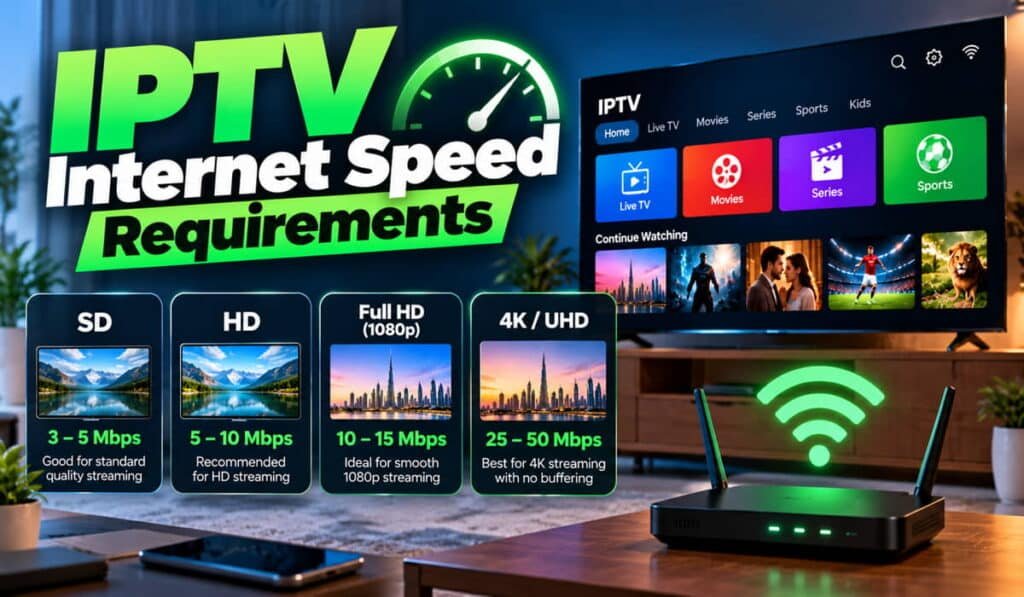
The internet speed you need for IPTV depends on the stream’s resolution and bitrate, the number of devices watching at the same time, and how much bandwidth other household activities use. As a general planning guide, allow around 3–5 Mbps for SD, 5–10 Mbps for 720p HD, 10–15 Mbps for Full HD, and 25 Mbps or more for 4K per stream. These are estimates, not universal IPTV standards. A stable connection and good network performance matter just as much as the advertised download speed.
How Much Internet Speed Do You Need for IPTV?
The right internet speed depends on the actual video stream and the network capacity available when you watch. The following figures provide a starting point for planning your connection.
| Streaming quality | Suggested download capacity per stream |
|---|---|
| Standard Definition (SD) | Around 3–5 Mbps |
| HD (720p) | Around 5–10 Mbps |
| Full HD (1080p) | Around 10–15 Mbps |
| 4K / Ultra HD | Around 25 Mbps or more |
These are practical planning estimates, not fixed requirements for every IPTV service. For comparison, Netflix recommends 5 Mbps for 1080p and 15 Mbps for 4K, while YouTube recommends sustained speeds of 5 Mbps for 1080p and 20 Mbps for 4K. Actual IPTV requirements depend on the stream’s bitrate, encoding, delivery system, and network conditions. Netflix’s recommendations and YouTube’s guidance illustrate why requirements vary.
Mbps means megabits per second. It measures the rate at which data can be transferred, not the total amount of data consumed.
Keep in mind that your internet package’s advertised speed is not necessarily the speed consistently available at your television. Wi-Fi interference, network congestion, and other household activity can reduce the bandwidth available for streaming.
Is 10 Mbps enough for IPTV?
A 10 Mbps connection may be sufficient for some SD and HD streams, particularly when one device is watching and little other internet activity is taking place.
However, it can become restrictive if the stream has a higher bitrate, other people are streaming videos, or the connection fluctuates. A 10 Mbps speed-test result also does not guarantee that the television will consistently receive that speed.
If playback frequently buffers, test the connection where the television is located before assuming that your internet package is the only problem.
Is 25 Mbps enough for IPTV?
A 25 Mbps connection can support many single-stream viewing situations, including some 4K streams, depending on their bitrate and the stability of the connection.
For example, a stream requiring 20 Mbps would leave approximately 5 Mbps of nominal capacity on a 25 Mbps connection. Other household activities or a drop in available throughput could consume that remaining capacity.
If several devices are active at once, a higher-speed package may provide more room for simultaneous use.
Is 50 Mbps enough for IPTV?
A 50 Mbps connection provides a larger bandwidth budget for IPTV and other household activities.
It may comfortably accommodate a single high-quality stream alongside ordinary browsing or light online activity. It can also support multiple streams when their combined bitrate and other network demand remain within the available capacity.
The number of devices alone does not determine the requirement. Two devices playing high-bitrate 4K video can demand more bandwidth than several devices performing light browsing.
Is 100 Mbps enough for IPTV?
A 100 Mbps connection provides substantial capacity for many household streaming setups. It can accommodate several simultaneous streams in many situations, provided their combined demand and other internet usage remain within the connection’s usable capacity.
However, upgrading to 100 Mbps does not automatically eliminate buffering. Weak Wi-Fi, packet loss, a device problem, or congestion affecting the IPTV service can still interrupt playback.
The goal is to have enough usable bandwidth for your household, rather than choosing the largest package available without checking the actual cause of a problem.
For a broader introduction to the technology, read what IPTV is and how it works.
What Determines IPTV Internet Speed Requirements?
Internet speed requirements vary because video streams, playback devices, and home networks do not all behave in the same way.
Video resolution: SD, HD, Full HD, and 4K
Resolution describes the dimensions of a video image. SD uses fewer pixels than HD, Full HD, or 4K, so higher-resolution video generally needs more data to deliver comparable visual quality.
However, resolution alone does not determine bandwidth requirements. Two streams with the same resolution can use different bitrates because of their compression, frame rate, and encoding settings.
A 1080p stream encoded efficiently at a relatively low bitrate may require less bandwidth than another 1080p stream encoded at a higher bitrate.
Stream bitrate and video compression
Bitrate describes how much video data is transmitted per second. It is one of the most important factors affecting how much bandwidth a stream needs.
These terms describe different parts of the process:
- Resolution: The dimensions of the video image.
- Bitrate: The amount of data transmitted per second.
- Compression: The process used to represent video using less data.
- Bandwidth: The capacity available to carry data across a network.
Video codecs, including H.264 and H.265, use different methods to compress video. Their efficiency can affect the bitrate needed to achieve a particular visual quality.
This is why you should treat speed estimates as planning guidance rather than assume every HD or 4K stream needs exactly the same Mbps.
Learn more about how IPTV streaming technology works for a deeper explanation of delivery methods and video encoding.
Number of simultaneous streams
Every active stream contributes to the household’s total bandwidth demand.
A household watching IPTV on two televisions at once needs to account for both streams. If another person starts a third stream, the total demand increases again.
A useful planning formula is:
Total streaming demand = the sum of the bitrates of all simultaneous streams.
You should then account for other internet activity and allow some additional capacity for fluctuations.
Other devices using the internet
IPTV shares the household connection with other online activities. Video calls, large downloads, cloud backups, software updates, and other video streams may consume available bandwidth.
A connected device does not necessarily use a large amount of bandwidth all the time. What matters is what it is doing while IPTV is playing.
For example, a laptop sitting idle may have little effect on streaming. The same laptop downloading a large file could compete for available capacity, depending on how the network handles traffic.
Network stability and available throughput
Your internet package’s advertised speed describes a service level, but the performance available to your IPTV device can vary.
Network congestion, wireless interference, packet loss, and fluctuations in throughput can affect playback even when the connection’s nominal speed is high.
The route between your internet provider and the IPTV service may also influence performance. As a result, the connection’s stability and the quality of delivery matter alongside download speed.
How Much Speed Do You Need for Multiple IPTV Devices?
To estimate your household’s requirements, add the expected bitrate of every stream playing at the same time, account for other internet activities, and leave a suitable capacity margin.
Estimated total demand = combined stream bitrates + other internet activity + a capacity margin.
This is a planning method rather than a guarantee. Stream bitrates can change during playback, and household internet use varies throughout the day.
Internet speed for one IPTV stream
Start by identifying the approximate bitrate of the stream you intend to watch. Then consider whether other devices will use the connection at the same time.
A single low-bitrate stream may work well on a modest connection, while a high-bitrate 4K stream may need considerably more capacity.
If you do not know the exact bitrate, use the planning table above as a starting point and test the connection under normal viewing conditions.
Internet speed for two or more IPTV streams
Consider this illustrative household setup:
- Two HD streams, each assumed to use 8 Mbps: 16 Mbps combined.
- One 4K stream, assumed to use 20 Mbps: 20 Mbps.
- Total assumed streaming demand: 36 Mbps.
These are assumed bitrates for calculation purposes, not measurements from a particular IPTV provider. Actual streams may use more or less bandwidth.
A household with a 50 Mbps connection would have a nominal 14 Mbps remaining after these streams, assuming the full 50 Mbps is available. That remaining capacity would still need to accommodate other online activities and any variation in connection performance.
This example shows why you should consider the combined demand of simultaneous streams instead of selecting a package based on one television alone.
IPTV alongside gaming, video calls, and downloads
Other activities can also compete for network capacity. A large download or cloud backup may reduce the capacity available to IPTV. Video calls use both download and upload bandwidth, while online gaming can be sensitive to latency and packet loss even when its bandwidth requirements are modest.
If buffering occurs mainly when other people use the internet, repeat a speed test while the household is active. This helps reveal whether the connection performs differently during normal use.
You should also confirm that the devices themselves support the service and its required playback formats. See IPTV devices and compatibility for more information.
Download Speed vs. Upload Speed for IPTV
Download speed is generally the primary consideration when you watch IPTV through an internet connection because your device receives the video stream.
Upload speed measures how quickly your connection sends data outward. It is less directly important for receiving a typical television stream, but it can still matter to the overall household network.
For example, a cloud backup uploading large files or a video call sending high-quality video may use a significant part of the available upload capacity. Depending on the connection and router, this activity can contribute to congestion that affects other applications.
Do not judge an internet connection by download speed alone if your household frequently uses video calls, cloud services, or other upload-intensive applications.
A speed test gives you a useful snapshot of connection performance, but it does not fully measure the quality of the route to your IPTV service or identify every possible playback problem.
How to Test Your Internet Speed for IPTV
A speed test is most useful when it reflects the conditions under which you actually watch television. Follow these steps to get a more realistic picture of your connection.
Test the connection at your IPTV device
If possible, run a speed test on the television or streaming device used for IPTV.
A phone beside the router may report a much better result than a television connected to Wi-Fi in another room. The relevant measurement is the performance available at the playback device, not simply the fastest result you can obtain elsewhere in the house.
If the television cannot run a speed-test tool, test another device in the same location using the same Wi-Fi network.
Test during normal household usage
Take a measurement while the household is using the internet as it normally would.
For example, check performance while other people are streaming videos, browsing, or making calls. This can show whether the connection has sufficient capacity during your usual viewing hours.
Also take a measurement when network activity is low so you can compare the results.
Repeat the test at different times
Run several tests rather than relying on one result. Include the hours when you usually watch IPTV, as network conditions may vary throughout the day.
Record the download speed and look for large fluctuations. If the results regularly fall below your expected requirements, investigate the connection and network before choosing a faster package.
Compare the result with the stream’s estimated bitrate
Check whether the connection has enough available capacity for your active streams and other household usage.
A speed-test result higher than the estimated bitrate is a useful starting point, but it is not a guarantee of smooth playback. The test may not reflect every fluctuation, the route to the IPTV provider, or the performance of the application and device.
Compare Wi-Fi with Ethernet
If your device supports a wired connection, test Ethernet as a comparison with Wi-Fi.
If playback improves significantly over Ethernet, the wireless connection may be contributing to the problem. If the same issue continues, investigate other possibilities, including the router, device, application, or service.
For help moving from connection testing to configuration, see the IPTV setup guide.
Why Does IPTV Buffer Even With Fast Internet?
IPTV can buffer despite a high speed-test result because download speed is only one part of streaming performance.
Weak Wi-Fi signal or wireless interference
Walls, distance from the router, neighbouring wireless networks, and other sources of interference can reduce the performance available at the television.
Try moving the device closer to the router or using Ethernet to determine whether the wireless connection is involved. Router placement and home layout can make a noticeable difference.
Network congestion or packet loss
Network congestion occurs when demand exceeds the capacity available at a particular point. Packet loss means that some data packets fail to reach their destination.
Either problem can interrupt playback, even if a speed test taken at another time shows a high download speed.
IPTV provider or delivery problems
The provider’s infrastructure or the network route between the service and your home may affect stream delivery. If one service buffers while other internet activities work normally, a service-specific problem is one possibility.
However, this alone does not prove the provider is responsible. Compare different streams and test the connection before drawing a conclusion.
Router or device limitations
An older router, limited device resources, outdated software, or a device running many applications may affect playback.
Restarting the router or playback device can help with some temporary issues, while software updates may resolve compatibility problems. Persistent issues may require further diagnosis.
Application compatibility or configuration
Playback problems can also occur when an application does not support a particular stream format or has incorrect settings. These issues are not necessarily solved by upgrading the internet connection.
For step-by-step diagnosis, visit the IPTV troubleshooting guide.
How to Improve Internet Performance for IPTV
Before paying for a faster internet package, try the following steps to identify and reduce common causes of poor playback.
Use a wired Ethernet connection
When practical, connect the IPTV device to the router using Ethernet. A wired connection can reduce wireless interference and fluctuations.
Ethernet will not solve every problem, particularly if the issue is related to the internet provider, the route to the IPTV service, or the playback device.
Improve Wi-Fi coverage
Place the router in a relatively central, open position and reduce obstacles between it and the television.
If your home is large or has several floors, a suitable mesh system or additional access point may improve coverage. Results depend on the layout of the property and the equipment used.
Reduce competing network activity
Pause large downloads, cloud backups, or other bandwidth-intensive activities when they interfere with viewing.
If several people regularly stream high-resolution video at once, check whether the household connection has enough available capacity for the combined demand.
Restart and update equipment when appropriate
Restarting the router and playback device may resolve temporary problems. Check for relevant firmware, operating system, and application updates as well.
If the issue returns repeatedly, use speed tests and other checks to identify the underlying cause rather than relying on repeated restarts.
Check the IPTV application and service
If your setup permits it, compare another supported stream or application. Check whether the problem occurs across multiple channels or only with particular content.
This comparison can help distinguish a local connection issue from a device, application, or service-specific problem.
For a better understanding of the software involved, read what an IPTV app does.
Upgrade your internet plan only when necessary
A faster package can help if your available bandwidth is consistently insufficient for the streams and other activities in your household.
However, a higher advertised speed will not necessarily resolve weak Wi-Fi, packet loss, application errors, or provider-side congestion. Identify the bottleneck first so you can choose the right solution.
Does IPTV Use a Lot of Internet Data?
Internet speed and data usage are related, but they measure different things.
- Internet speed measures the rate at which data can be transferred, usually in Mbps.
- Data usage measures the total amount of data transferred over a period, often in gigabytes (GB).
Data consumption depends on the stream’s bitrate, how long you watch, and how many streams run simultaneously.
You can estimate data consumption using this formula:
Approximate decimal GB consumed = bitrate in Mbps × viewing time in seconds ÷ 8,000.
For example, a stream using a constant 8 Mbps for one hour would consume approximately 3.6 GB before accounting for protocol overhead and other network traffic.
The calculation is illustrative. Actual usage can vary because a stream’s bitrate may change during playback.
Higher-bitrate streams generally consume more data over the same viewing period. Watching for longer or running multiple streams also increases total usage.
This distinction matters if your internet plan includes a data allowance. A connection can have sufficient speed for IPTV but still use a substantial amount of data over long viewing sessions.
To understand the delivery process behind these calculations, read our guide to how IPTV works.
Frequently Asked Questions About IPTV Internet Speed
What is the minimum internet speed for IPTV?
There is no universal minimum for every IPTV stream. As a planning guide, around 3–5 Mbps may suit SD, 5–10 Mbps may suit 720p HD, 10–15 Mbps may suit Full HD, and 25 Mbps or more may be appropriate for 4K. Actual needs depend on bitrate, network stability, and other internet usage.
Is 10 Mbps enough for IPTV?
It may be enough for some SD and HD streams, especially when only one stream is active. It can be insufficient for higher-bitrate content or when other devices compete for bandwidth. Test the connection at your playback device to see how much capacity is actually available.
Is 25 Mbps enough for 4K IPTV?
It can be sufficient for some 4K streams, but it is not a guarantee. A stream with a high bitrate, competing household activity, or unstable Wi-Fi may need more available capacity. Check the provider’s requirements and test your connection under normal viewing conditions.
Is 100 Mbps enough for multiple TVs?
A 100 Mbps connection can provide substantial capacity for multiple televisions, but the result depends on the combined bitrate of the active streams and other household usage. Several high-bitrate streams may require more capacity than a few lower-bitrate streams.
Does IPTV work on Wi-Fi?
Yes. IPTV can work over Wi-Fi when the wireless connection is fast and stable enough for the stream. If you experience buffering, compare Wi-Fi with Ethernet to see whether wireless interference or weak coverage contributes to the problem.
Why does IPTV buffer when my internet is fast?
Buffering may result from weak Wi-Fi, network congestion, packet loss, device limitations, application problems, or issues affecting the provider’s delivery system. A speed test is useful, but it cannot identify every cause. Compare results at the playback device and test the service under different conditions.
Does a VPN affect IPTV speed?
A VPN can affect connection speed and routing depending on its server location, protocol, distance, and network conditions. It may help or worsen performance in particular circumstances, but it is not a universal buffering solution and does not make unauthorised content distribution lawful.
Should I upgrade my internet package to stop IPTV buffering?
Upgrade only when testing suggests that available bandwidth is the bottleneck. If the connection has sufficient capacity, check Wi-Fi coverage, router performance, the playback device, the application, and possible service-side issues before paying for a faster package.